

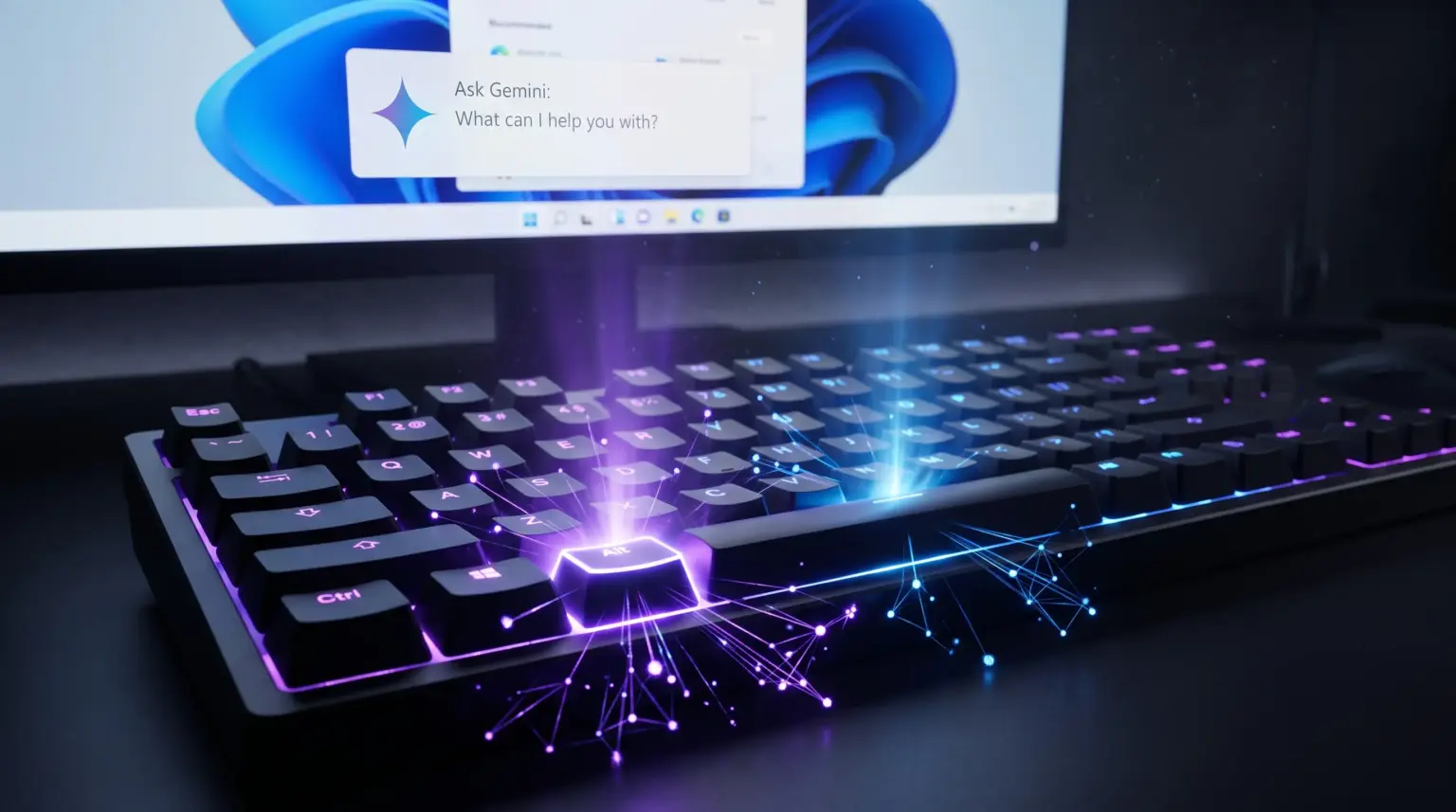
Google has officially released the dedicated Gemini for Windows client for Windows 10 and 11… The killer feature of this release is instant overlay activation on top of any running program or game by pressing Alt + Space. We’ll cover how to install the client, resolve hotkey conflicts, and get the most out of this desktop AI assistant.
Why Use the Gemini for Windows Desktop App?
While the Gemini web interface in a browser works fine, the desktop application fundamentally changes your workflow:
- No context switching: no more frantically searching for the right tab among hundreds of open pages in Chrome or Firefox. Press the keys and the window pops up over your IDE, spreadsheet, or terminal.
- Hardware optimization: the client is packaged in a lightweight container, doesn’t consume gigabytes of RAM in the background, and supports both x64 systems and ARM64 devices.
- Deep integration: the assistant connects directly to Google Drive and Gmail, aggregating context from documents, consolidating spreadsheets, and generating media right on your desktop.
The Main Technical Issue: The Battle for Alt+Space
By default, Google assigned the client launch to the Alt + Space. But for any self-respecting sysadmin or experienced Windows user, this combination is already taken:
- In vanilla Windows,
Alt + Spacehas always invoked the system context menu for the active window (minimize, maximize, close). - If you have the powerful Microsoft PowerToys utility suite installed, this hotkey is locked to the quick launcher module PowerToys Run.
How to resolve the conflict: if pressing the combination brings up the PowerToys search bar, go to PowerToys settings ➔ PowerToys Run section ➔ change the activation to Win + Shift + Space. If you prefer to launch Gemini with a different combination, you can reassign the hotkey directly in the Google client settings.
How to Install Gemini on Windows
The deployment procedure takes less than a minute:
- Go to the official download site
gemini.google/desktopand download theGeminiSetup.exeinstaller. - Run the installer and sign in with your Google account. Chat history and saved settings will instantly sync from the cloud.
- Test the global shortcut: press
Alt + Spacedirectly in an active document or development environment. The input window should neatly pop up in the center of the screen.
Gemini vs. Microsoft Copilot: Who Wins?
Microsoft has been aggressively pushing Copilot into every Windows system update for years now, but desktop Gemini beats Redmond on key fronts. Google’s overlay is noticeably more responsive than the heavyweight Edge panels, doesn’t spam you with annoying ecosystem service ads, and provides access to multimodal models for visual generation and deep code review in one click. For those who value response speed and a clean desktop without clutter, the Gemini client has become the best utility of the month.
For homelabs, remote testing, and staging environments, we run NVMe VDS instances on Erahost. Fast provisioning, European routing, and predictable I/O.
View NVMe Plans →