

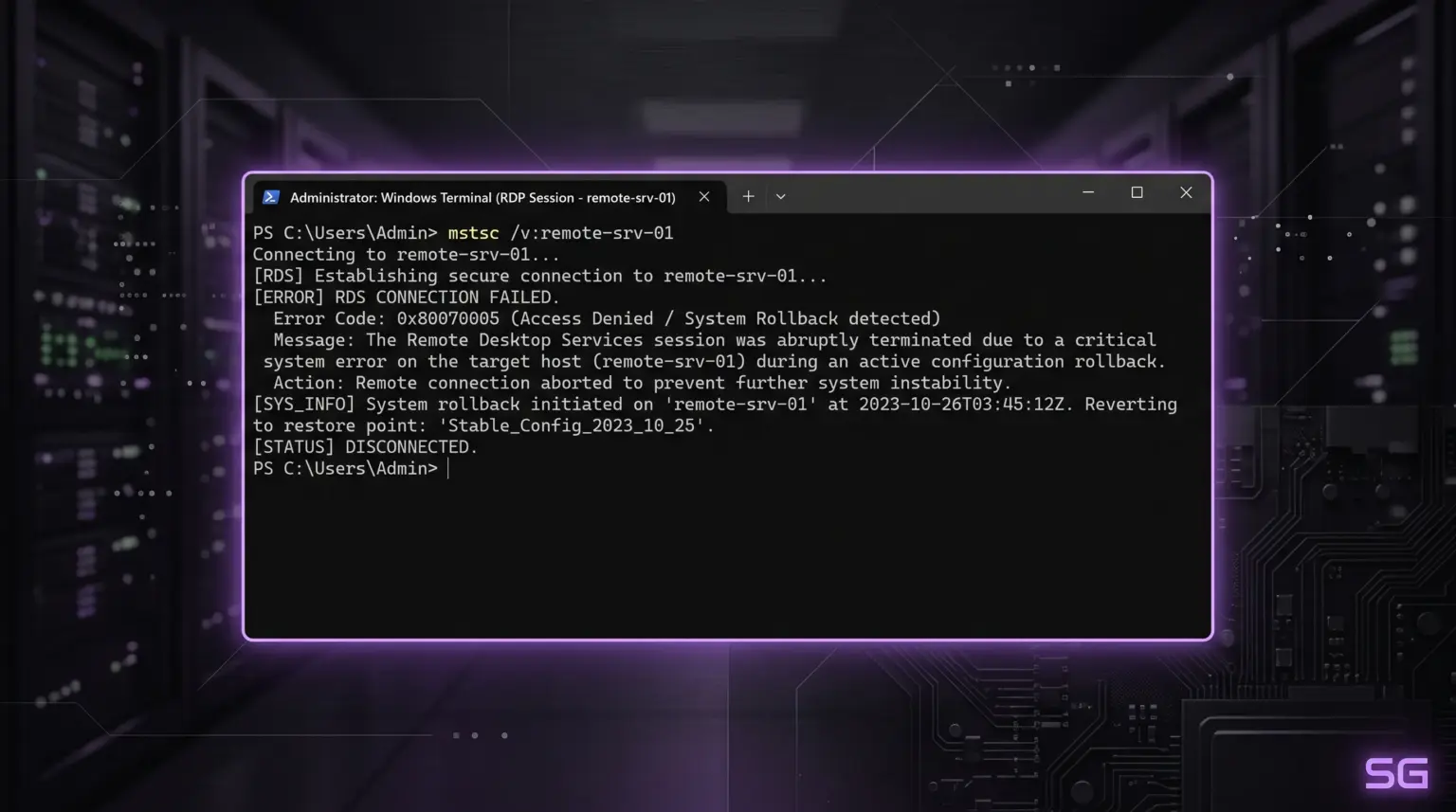
After installing the scheduled September security update package, Windows Server RDP stopped accepting connections, leaving administrators worldwide locked out.
What Broke Windows Server RDP?
The server doesn’t crash immediately after reboot—it can run stably for several hours. The error occurs the moment one of the users logs off (Log off).
At that moment, a mutual lock (deadlock) occurs between the RDP service and the Local Session Manager (Local Session Manager / LSM) in the system library
RDPSERVERBASE!WDLIB_Close. After that, the service freezes completely, new users cannot connect, and the server often refuses to reboot normally.The issue affected three editions of Windows Server at once:
-
Windows Server 2019—culprit update KB5122876
-
Windows Server 2022—culprit update KB5122882
-
Windows Server 2025—culprit update KB5122871
While Microsoft prepares an emergency out-of-band fix, the only working method to restore access is to temporarily remove the problematic package.
Step-by-Step Recovery Instructions
Since these are cumulative security updates, the standard
wusa /uninstall utility may return an error. The most reliable method for administrators is to use the DISM image servicing console utility.Step 1. Launch Command Prompt
If you can no longer connect via regular RDP, access the server through the hypervisor console (Hyper-V / VMware / Proxmox) or the hosting emergency console (VNC/KVM).
Open Command Prompt (CMD) as administrator.
Step 2. Remove the Faulty Package via DISM
Run the command corresponding to your Windows Server version:
-
For Windows Server 2019:
DOS
dism /online /remove-package /packagename:Package_for_RollupFix~31bf3856ad364e35~amd64~~17763.6293.1.5
(Or via quick search by package name:
dism /online /get-packages, copying the name with KB5122876)-
For Windows Server 2022:
DOS
wusa /uninstall /kb:5122882 /quiet /promptrestart
-
For Windows Server 2025:
DOS
wusa /uninstall /kb:5122871 /quiet /promptrestart
If
wusa returns an error stating the update is mandatory for the system, use the DISM rollback command with the full package name.Step 3. Reboot the Server
To apply the changes and restore the old working RDP libraries, perform a reboot:
DOS
shutdown /r /t 0
Step 4. Temporarily Block Reinstallation
If you do nothing, Windows Update will download this patch again the next night.
-
Open Settings (Win + I) → Windows Update.
-
Click Pause updates (select pause for 1–2 weeks).
-
For domain networks, disable approval of these KBs in the WSUS console or Group Policy (GPO).
After that, RDP access will be fully stabilized until Microsoft releases an official fix.
Recommended Infrastructure
For homelabs, remote testing, and staging environments, we run NVMe VDS instances on Erahost. Fast provisioning, European routing, and predictable I/O.
View NVMe Plans →