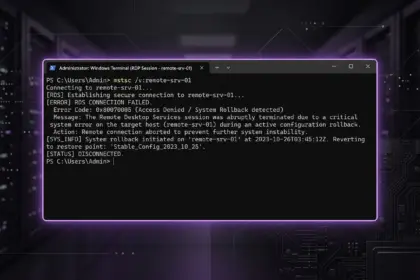



Remote connection failure is a classic headache for any system administrator and technical support engineer. Yesterday the session connected instantly, and today after another background patch of the operating system the client freezes completely and throws a failure alert: RDP Error 0x204 (Remote Desktop Error 0x204: The connection to the remote PC was lost). The problem appears widely across both client builds of Windows 10/11 and server environments running Windows Server 2022 and 2025.
Why RDP Error 0x204 Occurs: Root Causes
Diagnostic code 0x204 captures a network timeout during the initial handshake between the MSTSC client and the remote terminal host. The physical connection is active, ICMP pings may respond with zero packet loss, but payload traffic is completely blocked at the transport or session layer. Typical failure triggers include:
- Port 3389 blocked: Windows Defender Firewall or boundary filters dropped inbound rules following a cumulative OS update.
- TermService unresponsive: The Remote Desktop Services background process crashed, hung in a Stop-Pending state, or was disabled.
- NLA negotiation conflicts: Network Level Authentication rejects the connection due to expired host certificates or out-of-sync system clocks.
- Corrupted registry values: The terminal server listening port was overwritten or altered in the system registry hives.
If virtualization is deployed on the host side or server hardware with multiple physical network interfaces is used, RDP traffic often gets misrouted into an isolated virtual switch.
Method 1. Verify Port 3389 and Restart Terminal Services
First, verify whether the operating system is actively listening for incoming packets on the target socket. Open an elevated PowerShell console as administrator on the remote host and run the port diagnostic:
Test-NetConnection -ComputerName 127.0.0.1 -Port 3389If the TcpTestSucceeded parameter returns False, the terminal listener is down. Restart the service and set it to automatic startup using the following command sequence:
Stop-Service TermService -Force
Start-Service TermService
Set-Service TermService -StartupType Automatic
Next, verify the active listening port inside the system registry via Regedit at the following path:
HKLM\System\CurrentControlSet\Control\Terminal Server\WinStations\RDP-TcpThe PortNumber DWORD value in Decimal format must strictly match 3389 (or your customized translation port).
Method 2. Reset the Firewall and Open Network Gateways
Cumulative updates routinely reset Windows Defender Firewall profiles, causing RDP Error 0x204 to drop incoming packets. Forcibly open port 3389 for all network profiles (Domain, Private, and Public) via the administrative command prompt:
netsh advfirewall firewall add rule name="Open RDP Port 3389" dir=in action=allow protocol=TCP localport=3389To eliminate socket deadlocks, stale DNS entries, and routing table corruption, reset the networking stack:
ipconfig /flushdns
netsh winsock reset
netsh int ip reset
After resetting the Winsock catalog, reboot the host machine to allow the network interface controllers to reinitialize their driver stacks.
Method 3. Disable NLA (Network Level Authentication)
The Network Level Authentication mechanism requests credential authorization before creating the graphical session interface. When the host’s security certificates are corrupted or desynchronized, this barrier triggers an immediate termination. To isolate the failure, temporarily bypass NLA:
- Press Win + R, type
sysdm.cpl, and press Enter to launch System Properties. - Navigate to the Remote tab.
- Under the “Remote Desktop” section, uncheck the “Allow connections only from computers running Remote Desktop with Network Level Authentication” option.
- Apply the changes and attempt a fresh connection from your client terminal.
Summary Table of RDP Error Code Diagnostics
To quickly identify remote desktop connection failures, refer to this diagnostic reference table:
| Error Code | Failure Symptom | Primary Action |
|---|---|---|
| Error 0x204 | Network timeout / port 3389 blocked | Add firewall rule, restart TermService |
| Error 0x104 | Subnet routing conflict | Check host subnet mask and default gateway |
| CredSSP Failure | Protocol encryption desynchronization | Update AllowEncryptionOracle registry policy |
Method 4. Add User to the Remote Desktop Users Group
Access is often blocked at the account privilege level if the user account lacks local administrative permissions. Grant the account remote terminal access via an elevated command prompt:
net localgroup "Remote Desktop Users" "TargetUsername" /add(For Active Directory domain accounts, use the "DOMAIN\Username" format instead.)
For in-depth security policy auditing, consult the official Microsoft Learn documentation on network connections. This workflow resolves the 0x204 failure in 95% of incidents without requiring an operating system rollback.
Pro tip: If the connection continues to drop across unstable Wi-Fi or VPN tunnels, inspect the MTU parameter on the network interface — excessive RDP packet fragmentation under reduced MTU limits is often masked by Windows as a generic 0x204 failure.
For homelabs, remote testing, and staging environments, we run NVMe VDS instances on Erahost. Fast provisioning, European routing, and predictable I/O.
View NVMe Plans →