
By using this site, you agree to the Privacy Policy and Terms of Use.
Accept
softandgadget.comsoftandgadget.comsoftandgadget.com
  • Hardware & PC
    • Processors (CPU)
    • Graphics Cards (GPU)
    • Storage & RAM
  • Software & OS
    • Operating Systems
    • Microsoft Office
    • Useful Utilities
  • Gadgets & AI
    • AI & Neural Networks
    • Smart Home
  • Troubleshooting
    • Network & Remote Access
    • Updates & Patches
    • Windows Errors & BSOD
Reading: Google Gemini for Windows: How to Set Up Alt+Space Activation
Share
Notification
Font ResizerAa
softandgadget.comsoftandgadget.com
Font ResizerAa
  • Hardware & PC
  • Software & OS
  • Gadgets & AI
  • Troubleshooting
Search...
  • Hardware & PC
    • Processors (CPU)
    • Graphics Cards (GPU)
    • Storage & RAM
  • Software & OS
    • Operating Systems
    • Microsoft Office
    • Useful Utilities
  • Gadgets & AI
    • AI & Neural Networks
    • Smart Home
  • Troubleshooting
    • Network & Remote Access
    • Updates & Patches
    • Windows Errors & BSOD
AI & Neural NetworksSoftware & OS

Google Gemini for Windows: How to Set Up Alt+Space Activation

Last updated: 22.09.2026 11:28
Evgeny Bely
ByEvgeny Bely
Founder of SoftAndGadget.com | Lead Systems Engineer & Tech Analyst
Founder & Editor-in-Chief of SoftAndGadget.com   Systems Architect and IT Specialist with 15+ years of experience in Windows environments, PC hardware, troubleshooting and performance optimization since...
Follow:
- Founder of SoftAndGadget.com | Lead Systems Engineer & Tech Analyst
Share
Gemini for Windows
SHARE

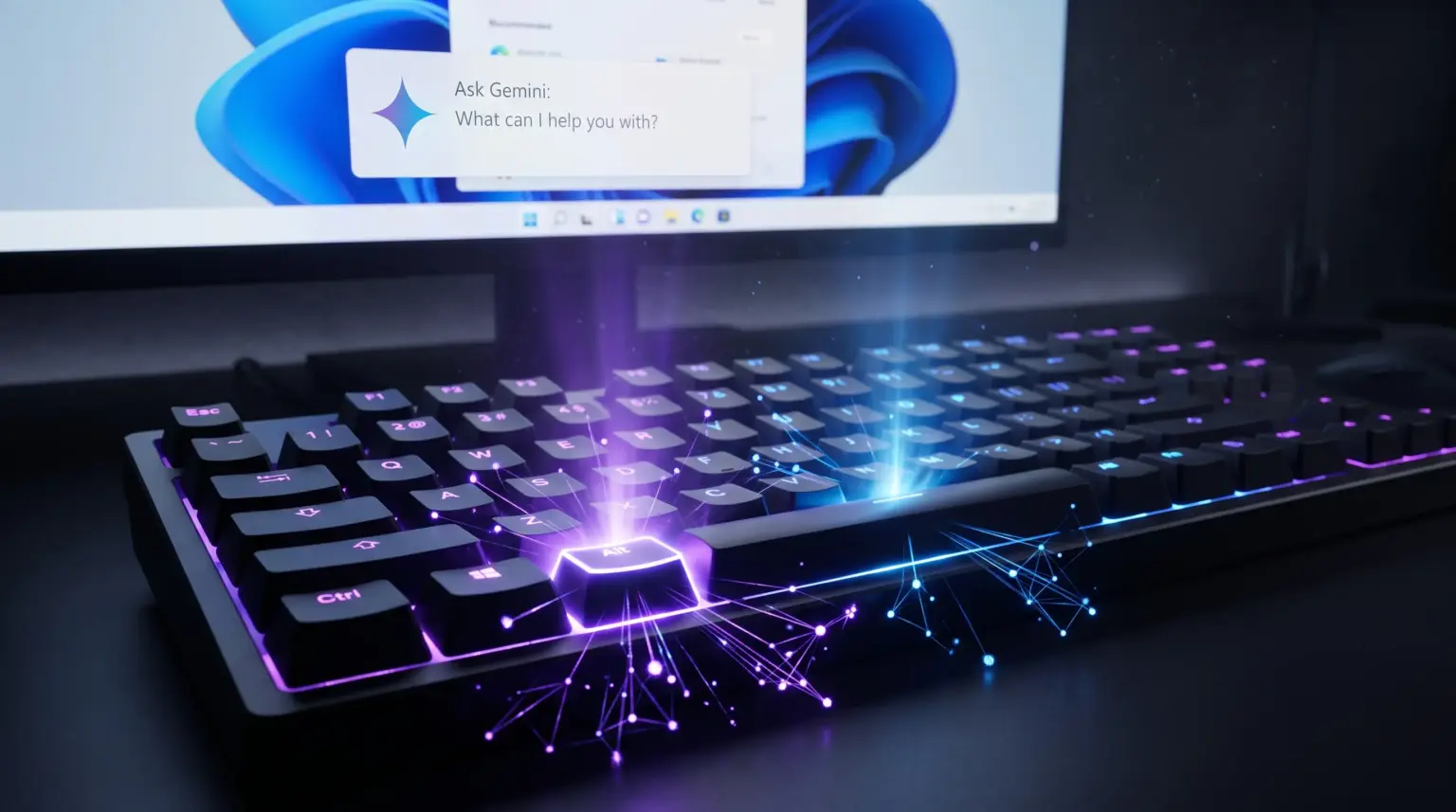
Google has officially released the dedicated Gemini for Windows client for Windows 10 and 11… The killer feature of this release is instant overlay activation on top of any running program or game by pressing Alt + Space. We’ll cover how to install the client, resolve hotkey conflicts, and get the most out of this desktop AI assistant.

Table of Contents
  • Why Use the Gemini for Windows Desktop App?
  • The Main Technical Issue: The Battle for Alt+Space
  • How to Install Gemini on Windows
  • Gemini vs. Microsoft Copilot: Who Wins?

Why Use the Gemini for Windows Desktop App?

While the Gemini web interface in a browser works fine, the desktop application fundamentally changes your workflow:

  • No context switching: no more frantically searching for the right tab among hundreds of open pages in Chrome or Firefox. Press the keys and the window pops up over your IDE, spreadsheet, or terminal.
  • Hardware optimization: the client is packaged in a lightweight container, doesn’t consume gigabytes of RAM in the background, and supports both x64 systems and ARM64 devices.
  • Deep integration: the assistant connects directly to Google Drive and Gmail, aggregating context from documents, consolidating spreadsheets, and generating media right on your desktop.

The Main Technical Issue: The Battle for Alt+Space

By default, Google assigned the client launch to the Alt + Space. But for any self-respecting sysadmin or experienced Windows user, this combination is already taken:

  • In vanilla Windows, Alt + Space has always invoked the system context menu for the active window (minimize, maximize, close).
  • If you have the powerful Microsoft PowerToys utility suite installed, this hotkey is locked to the quick launcher module PowerToys Run.

How to resolve the conflict: if pressing the combination brings up the PowerToys search bar, go to PowerToys settings ➔ PowerToys Run section ➔ change the activation to Win + Shift + Space. If you prefer to launch Gemini with a different combination, you can reassign the hotkey directly in the Google client settings.

How to Install Gemini on Windows

The deployment procedure takes less than a minute:

  1. Go to the official download site gemini.google/desktop and download the GeminiSetup.exe installer.
  2. Run the installer and sign in with your Google account. Chat history and saved settings will instantly sync from the cloud.
  3. Test the global shortcut: press Alt + Space directly in an active document or development environment. The input window should neatly pop up in the center of the screen.

Gemini vs. Microsoft Copilot: Who Wins?

Microsoft has been aggressively pushing Copilot into every Windows system update for years now, but desktop Gemini beats Redmond on key fronts. Google’s overlay is noticeably more responsive than the heavyweight Edge panels, doesn’t spam you with annoying ecosystem service ads, and provides access to multimodal models for visual generation and deep code review in one click. For those who value response speed and a clean desktop without clutter, the Gemini client has become the best utility of the month.

Recommended Infrastructure

For homelabs, remote testing, and staging environments, we run NVMe VDS instances on Erahost. Fast provisioning, European routing, and predictable I/O.

View NVMe Plans →


Stay Updated with SoftAndGadget

Get the latest Windows Internals, SysAdmin guides, and tech analysis delivered straight to your inbox.

By signing up, you agree to our Privacy Policy. You may unsubscribe at any time.
Share This Article
Facebook Whatsapp Whatsapp LinkedIn Reddit Telegram Copy Link Print
Share
ByEvgeny Bely
Founder of SoftAndGadget.com | Lead Systems Engineer & Tech Analyst
Follow:
Founder & Editor-in-Chief of SoftAndGadget.com   Systems Architect and IT Specialist with 15+ years of experience in Windows environments, PC hardware, troubleshooting and performance optimization since 2007.
Previous Article RDP Error 0x204 RDP Error 0x204 in Windows 11 and Server: 4 Ways to Fix Remote Access
Next Article Windows 11 25H2 Update Crash AMD Radeon Graphics and Black Screen Error Windows 11 25H2 Breaks AMD Graphics, RDS, and Sound: How to Apply an Emergency Fix
Leave a Comment

Leave a Reply Cancel reply

Your email address will not be published. Required fields are marked *

Latest News

Deploying secure self-hosted office suites in an isolated homelab server environment
Self-Hosted Office Suites: Replace Microsoft 365 Telemetry
Software & OS Microsoft Office
CMR vs SMR hard drives physical architecture comparison in enterprise NAS arrays
CMR vs SMR Hard Drives: Why SMR Fails in ZFS and RAID
Storage & RAM Hardware & PC
Troubleshooting KB5002907 Office deactivation on an enterprise Windows workstation
How to Fix KB5002907 Office Deactivation in 2016 and 2019
Software & OS Microsoft Office
Tiny11 Windows 11 26H2 minimal operating system architecture and debloat process
Tiny11 Windows 11 26H2: How to Build a Clean, Stripped OS Image
Software & OS Operating Systems

You Might Also Like

Windows 11 requirements bypass blocked in 26H2 setup
Operating SystemsSoftware & OS

Windows 11 Requirements Bypass Blocked in 26H2

Evgeny Bely
Winget GUI alternative
Software & OSUseful Utilities

UniGetUI: The Best Winget GUI Alternative for Windows

Evgeny Bely
Windows 11 Unified Memory
Graphics Cards (GPU)Hardware & PCSoftware & OSStorage & RAM

Windows 11 Unified Memory: A Guide to IntelligentCarveout (2026)

Evgeny Bely
© 2026 SoftAndGadget. All Rights Reserved. [email protected]
  • Contact
  • Site Map
  • Privacy Policy
  • Advertise
  • About Us
Иконка сайта SoftAndGadget — фиолетовый неоновый хайтек-логотип SG
Welcome!

Login to SoftAndGadget

Username or Email Address
Password

Lost your password?