

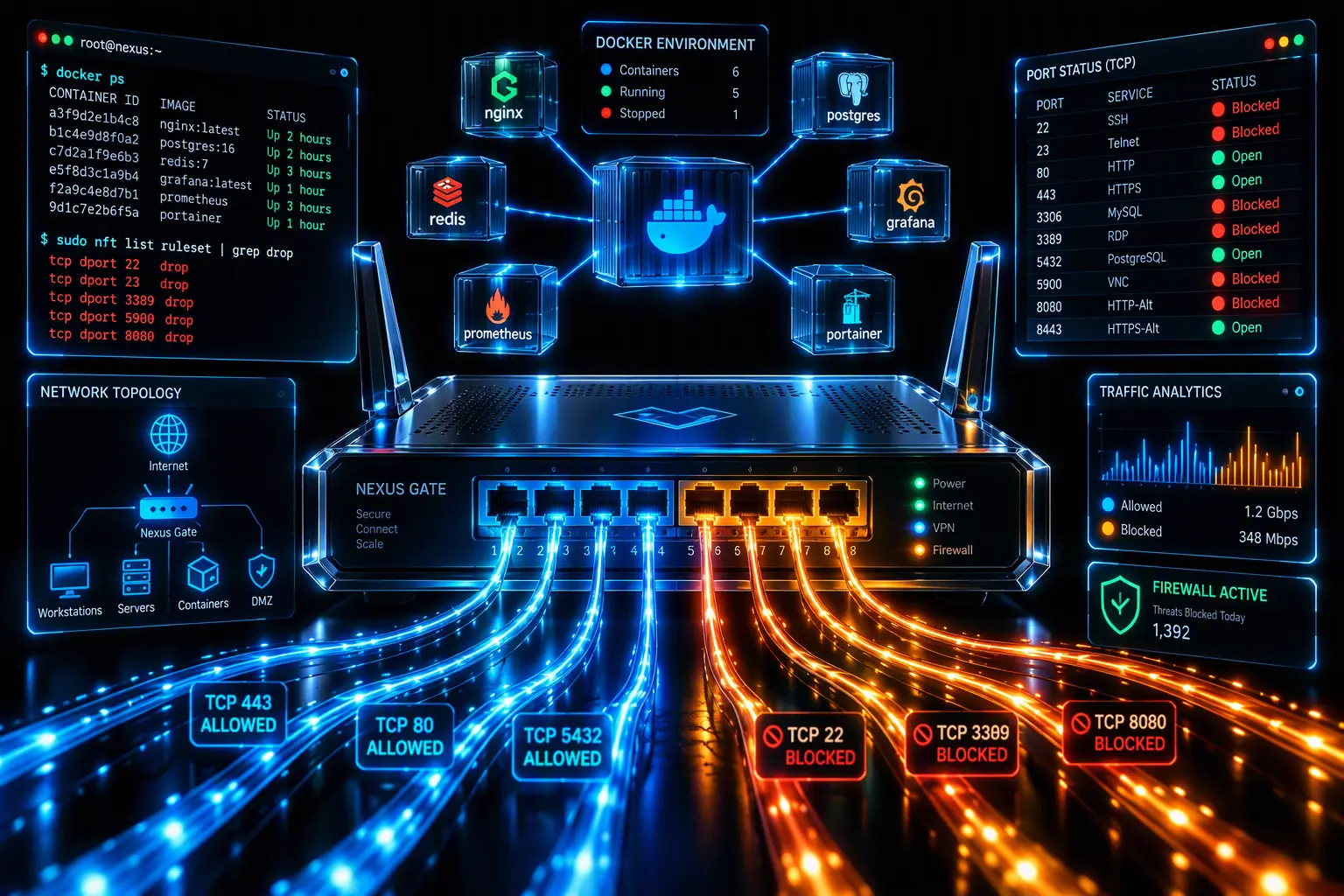
When running local development environments, starting Docker containers, or spinning up microservices across Node.js, Python, or Go, developers frequently encounter socket binding failures: bind: address already in use or the system error Port Already in Use. The most confusing aspect of this issue is that standard socket diagnostic utilities often show no active process or PID listening on the target port (such as 80, 443, 3000, 5432, or 8080).
In modern Windows environments, this silent socket hijacking is almost always caused by WinNAT (Windows Network Address Translation), working in tandem with the Hyper-V hypervisor and WSL2. During every cold boot, Windows dynamically claims expansive port blocks for internal virtualization routing, triggering unexpected Port Already in Use exceptions across local services.
Why the “Port Already in Use” Error Occurs with Active WinNAT
The Windows networking stack reserves ephemeral socket ranges to manage outgoing client sessions. When virtualization features like Hyper-V, Windows Sandbox, or WSL2 are enabled, the network translation driver reserves blocks of thousands of ports before user-level services or Docker Desktop have initialized.
When an application attempts to bind to a local port falling inside one of these reserved blocks, the Windows kernel rejects the bind() API call with Win32 error code WSAEACCES (10013). This generates a misleading error suggesting another background program is currently utilizing the port.
| Common Development Port | Typical Workload / Service | WinNAT Hijacking Risk |
|---|---|---|
| 80 / 443 (HTTP/HTTPS) | Nginx, Traefik, Apache reverse proxies | Moderate (conflicts during early startup) |
| 3000 / 3306 | Node.js, React dev servers, MySQL/MariaDB | High (frequently caught in dynamic blocks) |
| 5432 / 6379 | PostgreSQL instances, Redis caching layers | High (silently locked without assigned PID) |
| 8080 / 8443 | Spring Boot, Tomcat, alternate web servers | Critical (default target of ephemeral range) |
Diagnosing Reserved Excluded Port Ranges in Windows
Before modifying system parameters, verify whether your target port resides inside an active operating system exclusion list:
- Open PowerShell or Command Prompt (CMD) with Administrator privileges.
- Run the following command to display active TCP excluded port blocks:
netsh int ipv4 show excludedportrange protocol=tcp - Inspect the output table displaying Start Port and End Port ranges. If your required application port falls within any of these intervals, WinNAT is holding an exclusive kernel lock on that socket.
For complete technical specifications on Windows container networking architectures, consult the official Microsoft Container Networking Documentation and the Docker Desktop Troubleshooting Guide.
Quick Temporary Fix: Restarting the WinNAT Service
If you need to launch your development container immediately without altering persistent network configurations, restarting the translation driver releases the ephemeral lock:
- In an elevated command prompt, stop the WinNAT driver:
net stop winnat - Start your Docker container, local database, or development server. Because the kernel lock has been temporarily dropped, the application binds to the desired socket immediately.
- Restart the translation driver to restore network routing for running virtual machines:
net start winnat
Permanent Solution: Reallocating Dynamic Port Ranges
To eliminate the Port Already in Use collision permanently across system reboots, relocate the starting boundary of ephemeral ports to the range standardized by IANA (49152 and above):
- Open PowerShell as Administrator.
- Temporarily disable the NAT driver:
net stop winnat - Configure the IPv4 dynamic port range to start at 49152 with a dedicated pool size:
netsh int ipv4 set dynamicport tcp start=49152 num=16384 - Apply the matching configuration for IPv6 traffic if applicable:
netsh int ipv6 set dynamicport tcp start=49152 num=16384 - Restart the networking driver:
net start winnat - Reboot Windows to commit the modified TCP stack configuration permanently.
Advanced Configuration: WSL2 Mirrored Networking Mode
On recent builds of Windows 11, running WSL2 in mirrored networking mode eliminates NAT isolation layers entirely. Create or edit the .wslconfig file inside your user directory (C:\Users\<YourUsername>\.wslconfig) with these parameters:
[wsl2]
networkingMode=mirrored
dnsTunneling=true
firewall=true
autoProxy=true
Save the file and terminate running distributions using wsl --shutdown in PowerShell. Mirrored networking maps Linux network interfaces directly to Windows host sockets, bypassing WinNAT port interception completely.
Frequently Asked Questions (FAQ)
Q: Why does netstat -ano show no process using the occupied port?
A: The netstat command only tracks sockets opened by user-space applications. WinNAT reservations happen at the hypervisor kernel level, marking ports as unavailable without assigning an active Process Identifier (PID).
Q: Is moving the dynamic port start to 49152 safe for Windows?
A: Yes. The 49152–65535 range is the official IANA standard for ephemeral client connections, preventing operating system conflicts with standardized server ports.
Q: Will resetting WinNAT disrupt existing Docker containers or volumes?
A: No. Your local containers, stored volumes, and custom Docker networks remain completely intact. The command only clears host-level socket routing rules.
Related Technical Guides on SoftAndGadget:
- Network Troubleshooting: Network & RDP Configuration Guides
- System Diagnostics: Windows Error Resolution Directory
- System Utilities: Essential System Software Catalog
For homelabs, remote testing, and staging environments, we run NVMe VDS instances on Erahost. Fast provisioning, European routing, and predictable I/O.
View NVMe Plans →